BrandsImprove this page
After creating an account and getting access to the dashboard, the next step is to create a test Brand (Merchant). This lets you create locations and add them to a Program so you can start tracking transactions.
The Brand object is used to aggregate locations.
Create Brand
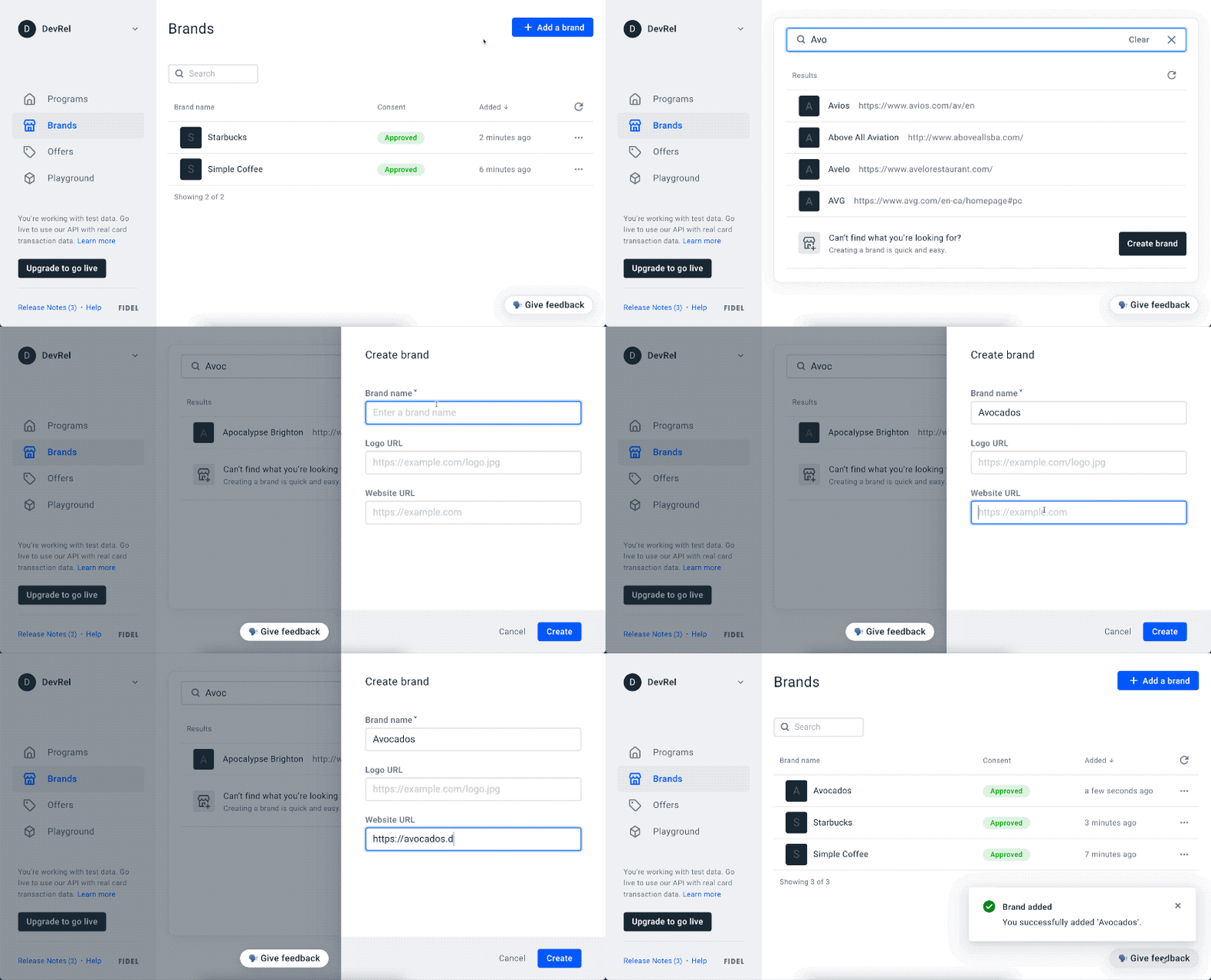
To add a new Brand, go to the Brands page on the Fidel Dashboard, click the Add a brand button and enter a name. If you can't find the brand in the Fidel Dashboard, you can create a new one. Optionally, you can add a link to the brand website and logo (Note: the links cannot be added later using the Dashboard). You can also create a Brand with the API:
12345678910curl -X POST \
  https://api.fidel.uk/v1/brands \
  -H 'Content-Type: application/json' \
  -H 'Fidel-Key: <KEY>' \
  -d '{
    "name": "Brand B",
    "logoURL": "https://example.com/logo.png",
    "websiteURL": "https://example.com/"
  }'
Image Upload Rules for the Dashboard
To ensure images render correctly in the dashboard, please adhere to the following constraints and recommendations when handling image uploads:
✅ Requirements
- Max file size:
1MB - Min dimensions:
360x360pixels
⚙️ Dashboard Behavior
- The dashboard does not manipulate the uploaded image.
- After upload, users can zoom and reposition the image, but no cropping or resizing is enforced. Bear in mind that zooming might decrease the image's quality.
🧠 Recommendations for Best Results
- Use an image where the logo fills the 360×360 area or has minimal whitespace.
- The uploaded image should be sharp and high-resolution.
- Blurry logos typically mean the source image is low quality, or has been stretched without preserving aspect ratio.
ℹ️ Important: It's the uploader’s responsibility to provide a clean, properly sized, and high-quality image. The dashboard won't correct poor inputs.